Have you ever found yourself with 20+ tabs open, but only wanting to cycle through 3 or 4 of them? Maybe you're tracking project dashboards and don't want your personal email or social media on screen. Free Tab Switcher handles this with two lists on each window's card: tabs to skip, and tabs to refresh.
This guide shows how to use both, so only the tabs that matter reach the screen.
The Problem: Too Many Irrelevant Tabs in Your Cycle
Modern browsing often involves juggling multiple contexts:
- Work tabs: Project dashboards, team chat, task management
- Personal tabs: Email, social media, news sites
- Research tabs: Documentation, tutorials, reference materials
- Background tabs: Music, weather, calendar
When you start tab cycling, you don't want to cycle through ALL of these. You want focused monitoring that matches your current workflow.
How Tab Filtering Works in Free Tab Switcher
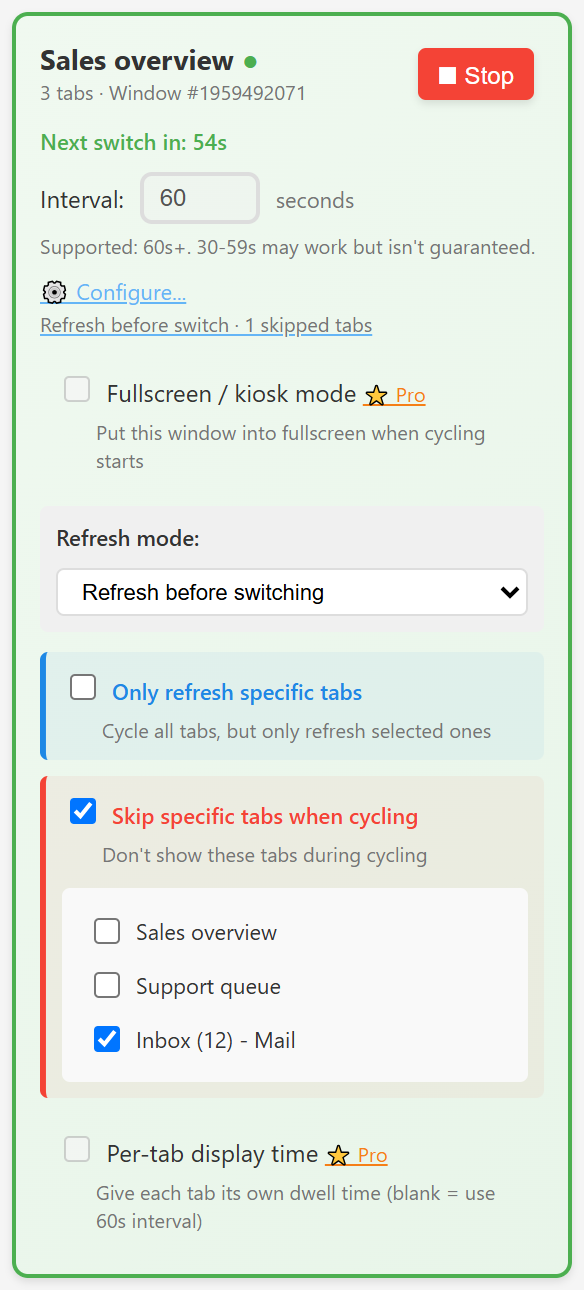
Every tab in a window rotates unless you skip it. On the window's card, open Configure… to find two lists:
- Skip specific tabs when cycling: tick tabs to leave out of the rotation. They stay open but never come on screen.
- Only refresh specific tabs: every tab still rotates, but only the ticked ones reload when your refresh mode fires.
Each list shows the window's open tabs by title, and you tick boxes. No patterns or rules to write. A skip matches on the page title or address, so a tab stays skipped after it reloads.
Setting Up Tab Filtering: Step-by-Step
Step 1: Open the Window's Settings
- Click the Free Tab Switcher icon in your Chrome toolbar
- Find the card for the window you want (the popup shows one per window)
- Click ⚙️ Configure…
Step 2: Skip the Tabs You Don't Want On Screen
- Tick "Skip specific tabs when cycling"
- A list of the window's tabs appears, by title (long titles are shortened)
- Tick each tab to leave out, like email or chat
Step 3: Start Cycling
- Changes save as you tick. Click ▶ Start if the window isn't rotating yet.
- Skipped tabs never come on screen. Every other tab rotates, including tabs you open later.
Practical Tab Filtering Scenarios
Scenario 1: Work Dashboard Monitoring
Situation: You have 15 tabs open, but only want to monitor 4 work dashboards.
Setup:
- Rotate: "Analytics Dashboard - Q4 Results", "Server Status - Production", "Sales Pipeline - December", "Team Chat - Project Alpha"
- Skip (tick in the skip list): personal email, news sites, documentation tabs
- Simpler with this many tabs: drag the 4 dashboards into their own window and rotate just that window
Result: Cycling rotates only through your 4 work dashboards.
Scenario 2: Research Project Focus
Situation: Researching competitors with many reference tabs open, but only want to cycle through comparison pages.
Setup:
- Rotate: "Product A vs Product B Comparison", "Pricing Analysis - Competitors", "Feature Matrix - Industry Leaders"
- Skip (tick in the skip list): background research, documentation, general articles
Result: Focused cycling through only comparison and analysis content.
Scenario 3: Social Media Management
Situation: Managing multiple social accounts while having other work tabs open.
Setup:
- Rotate: "Twitter Analytics", "LinkedIn Company Page", "Facebook Insights", "Instagram Business"
- Skip (tick in the skip list): email, project management, personal browsing
Result: Cycles through social media management tabs only.
Scenario 4: Live Event Monitoring
Situation: Monitoring multiple news sources during a breaking news event while keeping other tabs available.
Setup:
- Rotate: "BBC News - Live Updates", "CNN Breaking News", "Reuters Live Blog"
- Skip (tick in the skip list): other work tabs, personal content, reference materials
Result: Focused monitoring of live news sources only.
Advanced Tab Filtering Tips
Keeping Your Selection
Skip and refresh-only lists belong to the window and last until Chrome closes. After a restart, every tab rotates again. To keep a fixed set of pages that comes back by itself, use a Pro playlist: it opens only the pages you list. More in From Profiles to Playlists.
New and Closed Tabs
- New tabs join the rotation. They aren't skipped unless you tick them.
- Missing a tab in the list? Open Configure… again, or close and reopen the popup.
- Broad matches: a skip matches on title or address, so it can also catch a similar tab, like a second tab with the same title.
Combining with Refresh Settings
- Refresh-only list: with "Only refresh specific tabs" ticked, your refresh mode reloads only the ticked tabs. See our guide on auto-refreshing tabs for details.
- No list: the refresh mode reloads every tab it reaches.
- Perfect for live dashboards next to pages that shouldn't reload, like a form or a video.
Troubleshooting Tab Filtering
Filter Not Working as Expected?
Issue: Cycling still includes unwanted tabs
- Check: Make sure "Skip specific tabs when cycling" is ticked.
- Verify: The unwanted tabs are ticked in its list.
- Restart? Skips reset when Chrome restarts. Tick them again.
Issue: Important tabs not cycling
- Check: Make sure the tabs you want are not ticked in the skip list.
- Broad match: a skip can catch a similar tab. Untick skips one at a time to find it.
- Recheck: Verify the tab titles match what you expect.
Tab List Not Updating?
Issue: New tabs don't appear in the filter list
- Solution: Open Configure… again, or close and reopen the popup.
Issue: Closed tabs still showing in list
- Solution: Close and reopen the popup.
Performance with Many Tabs
Issue: Extension feels slow with many tabs
- Solution: Close tabs you don't need. Skipped tabs stay open and still use memory.
- Tip: Split workflows across windows instead of cycling through everything in one.
Tab Filtering Best Practices
Start Simple
- Begin with obvious exclusions - skip personal tabs in work cycling.
- Add complexity gradually - fine-tune your selections over time.
- Save setups you reuse as Pro playlists.
Organize by Context
- Work hours: Filter to work-related tabs only.
- Research sessions: Include only research and reference materials.
- Monitoring periods: Focus on dashboards and live data.
Regular Maintenance
- Review your selections when your workflow changes.
- Update your windows for new projects or responsibilities.
- Close windows you no longer rotate to keep things organized.
Tab filtering transforms Free Tab Switcher from a simple tab cycler into a precision monitoring tool. By skipping the tabs you don't need, you maintain focus and avoid information overload while still having all your reference materials available when needed.
Ready to focus your tab cycling? Download Free Tab Switcher and start filtering your way to productive monitoring!