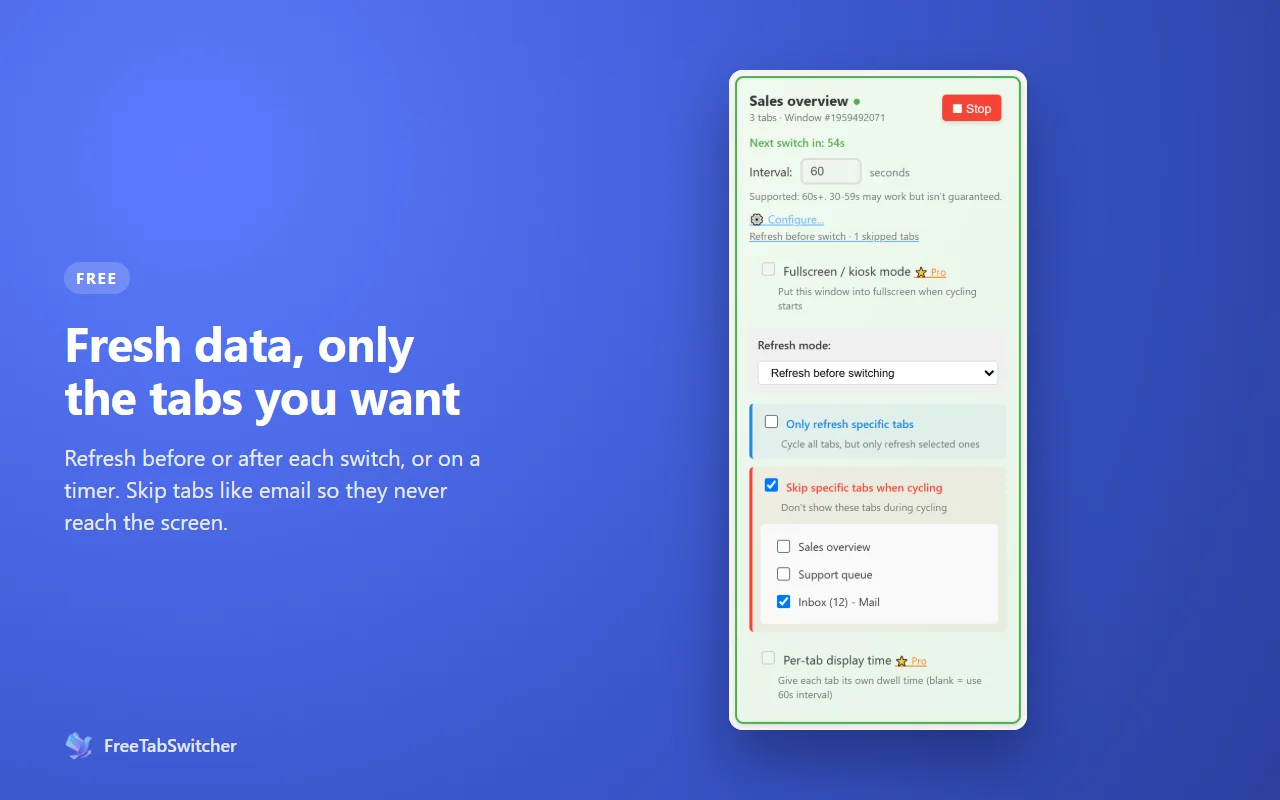
Set it up (free)
- Install FreeTabSwitcher from the Chrome Web Store.
- Sign in to Power BI in Chrome and open each report in its own tab, in one window.
- In each report, set the view to Fit to page so it fills the screen without scrollbars.
- Click the FreeTabSwitcher icon, set the interval and click ▶ Start.
- Open Configure… and choose Refresh before switching.
- Press F11 for fullscreen, and turn on Auto-start when browser opens.
How fresh is the data?
A report in the Power BI service shows data as of its last dataset refresh. Reloading the page picks up the newest refresh, which is what Refresh before switching does each time a report comes round. How often the data itself updates still depends on the dataset's refresh schedule in Power BI.
Tips for Power BI screens
- Use a dedicated account for the screen, with access only to the reports it shows, following your organisation's policy.
- Give busy reports longer on screen. With Pro, each report gets its own display time.
- Skip tabs that shouldn't rotate, such as a workspace list you keep open for editing.
Make it unattended with Pro
A Pro playlist opens your reports in their own window on the screen you choose, fullscreen, with a display time for each. Tick Launch when Chrome starts and the screen comes back by itself after a restart.
Pro arrives with version 2.1 as a one-time $19.99 upgrade. Everything else on this page is free. See what Pro adds.
Questions
Do I need a particular Power BI licence?
FreeTabSwitcher doesn't change Power BI licensing. Whoever is signed in on the screen needs access to the reports, exactly as in any browser.
Can it show reports from different workspaces?
Yes. Each tab can hold any report you can open; workspaces don't matter.
Can I mix Power BI with other pages?
Yes. Any web page can sit in the same rotation, such as a status page or a team calendar.